
Expense claims and reporting
Expense claims and reporting without piles of receipts
A portal where receipts, hours and reports are checked on submission and approved through a set route. For organisations with many volunteers, freelancers or project partners, and for funds that receive reports.
Sound familiar?
Expense claims take more time than necessary
Receipts, budgets and approvals go through different channels. You only get a clear overview once everything has been retyped.
- Receipts arrive as photos by email, without a project or cost centre.
- A project is already over budget, but you only see this at the final payment.
- Approval is stuck in the inbox of someone who is on holiday.
- The finance team retypes everything into the accounting software.
The solution
Expense claims with the rules already built in
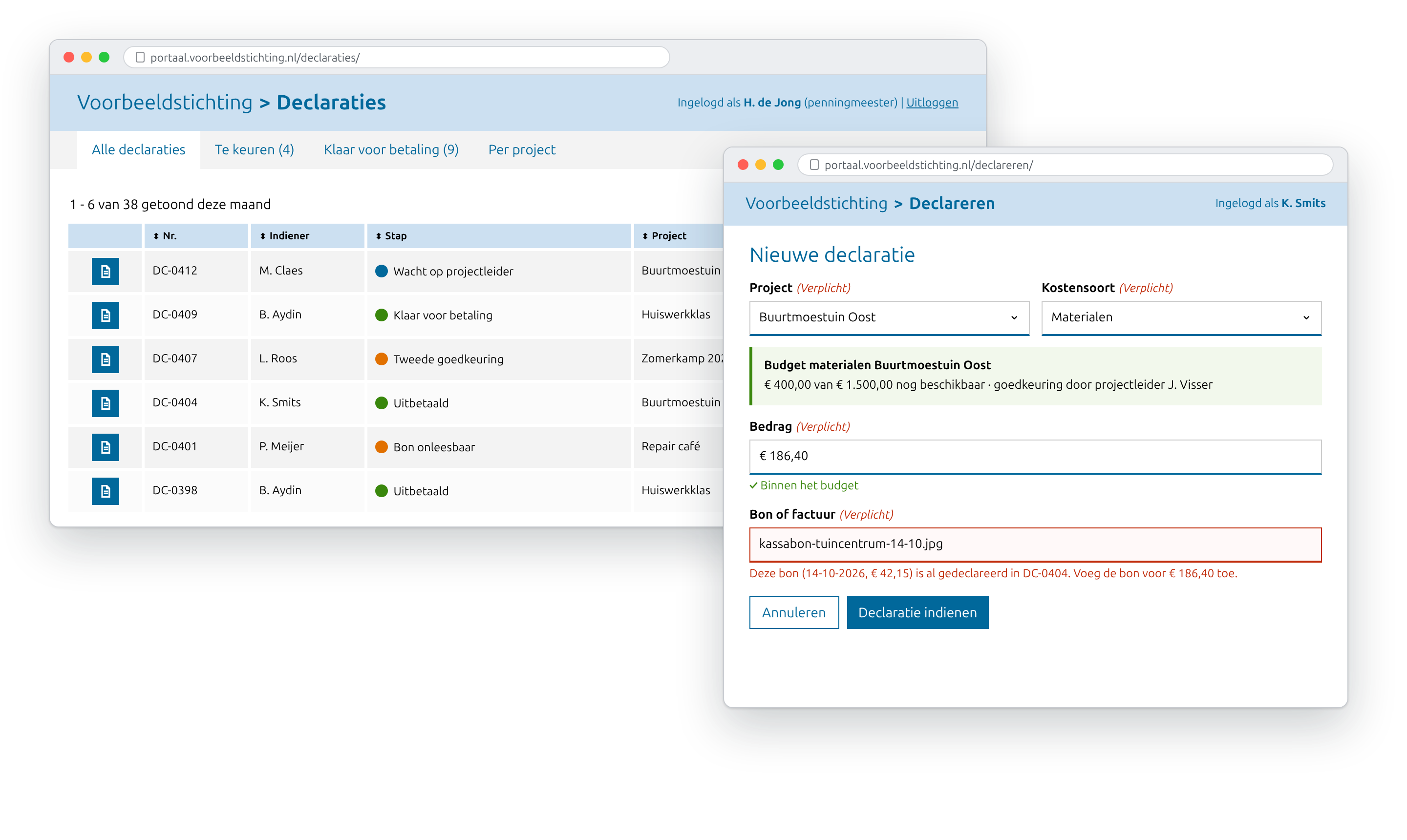
The expense claim form asks for the right details and supporting documents for each expense type, checks the claim against budgets and rules, and routes it to the right approver.
- the right fields and attachments for each expense type
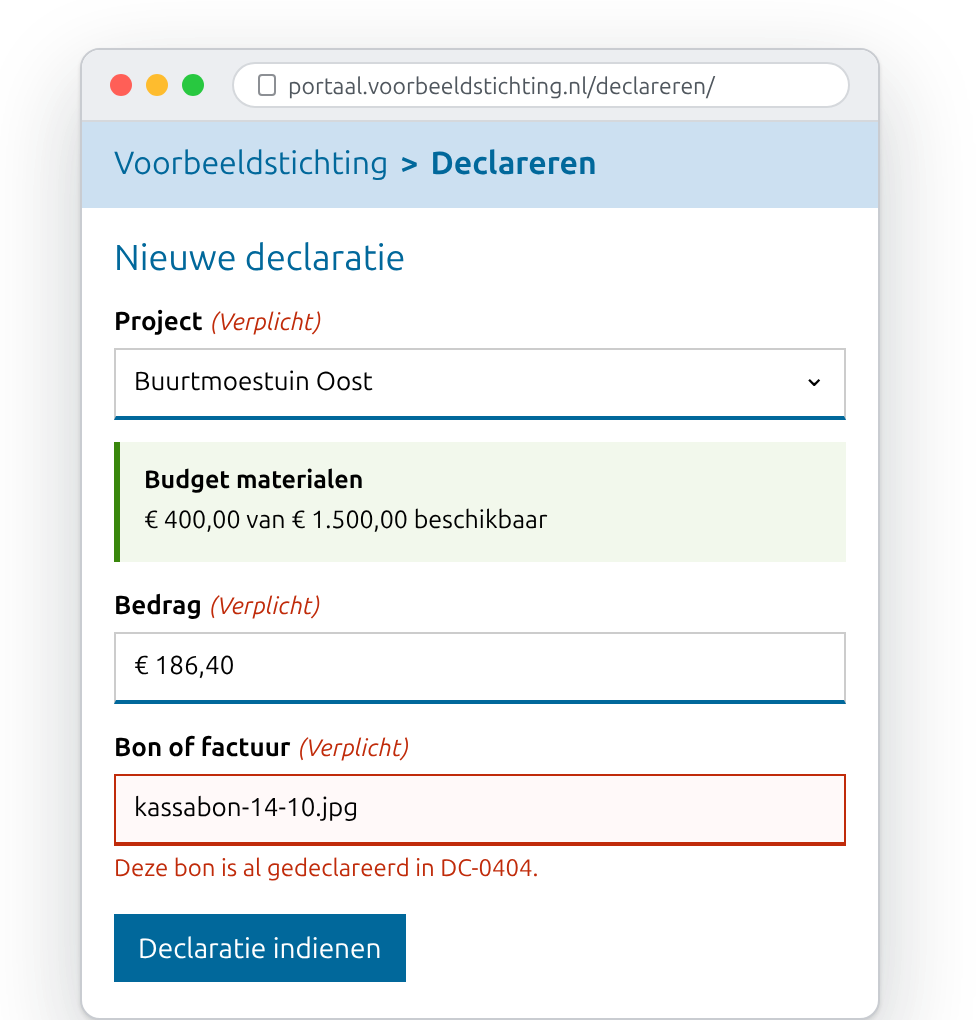
- checks on budgets, maximum amounts and duplicate receipts
- approval routing by amount, project or department, with cover for absences
- a standard format for activity and financial reports
- export to your accounting or payroll software
How the process flows
- SubmissionThe submitter selects a project and expense type and adds the receipt.
- ChecksBudgets, maximum amounts and duplicate receipts are checked immediately.
- ApprovalThe budget holder approves the claim; above a set threshold, a second approver follows.
- ProcessingApproved expense claims are sent to the finance team in batches.
- ReportingExpenditure by project or grant is ready for reporting.
Now
Receipts, email and Excel
- receipts without context
- budget overruns only visible afterwards
- approvals left waiting
- reports in ten different formats
- everything is retyped
Next
One expense claim portal
- every expense claim complete and linked to a project
- rules and budgets checked immediately
- approval routed to the right person, with cover for absences
- reports in a standard format
- export to your accounting software
Example flow
How an expense claim will flow
Example process
Foundation with 120 volunteers and 8 projects
Volunteers currently email photos of receipts to the treasurer, who enters them in Excel by project. Here is how one expense claim flows:
- Saturday · SubmissionA volunteer buys materials for a neighbourhood project, selects the project and expense type and adds a photo of the receipt.
- Saturday · BudgetThe amount exceeds the project budget, so a second approver is added automatically.
- Monday · ApprovalThe project lead and the second approver see the expense claim with its receipt and approve it.
- Tuesday · PaymentThe treasurer sees an approved expense claim and transfers the amount.
- December · ReportingExpenditure by project is already available for the annual report.
Discuss your expense claim process
In 30 minutes, we discuss how expense claims and reports currently come in, who approves them and where the process gets stuck.
- no detailed plan needed
- you share your process and bottleneck
- together we decide on a suitable next step


You will speak to Jurriaan Koops or René Serier, the partners at Aiwos.
After submitting
- A personal response within one working day
- A 30-minute conversation at a time that suits you
- A concrete next step, even if we are not the right fit